Gaming on Linux
This is based on the initial setup shown here running on Fedora KDE, however this should also work on any distro using the native apps.
ProtonDB
ProtonDB is an awesome resouce that can be found here. You can use it to look up games and see how they are running for people on Steam Deck and other Linux platforms. You can also use it to look at your own Steam library and see compatibility with the games you already own.
Are We Anti-Cheat Yet?
This website tracks multiplayer games that can be played on Linux platforms. Some forms of anti-cheat technology either will not run on Linux, or in some cases, the game devs refuse to enable Linux support. You can check here to see if the multiplayer games you are interested in playing are viable on a Linux platform.
MangoHUD
The config file for MangoHUD lives in ~/.config/MangoHud/ and the readme can be found here.
My current configuration is:
pci_dev=0000:03:00.0

fps
gpu_load
gpu_temp
vram
cpu_load
cpu_temp
frametime

position=top-left
font_size=18
background_alpha=0.35
Note in this particular case, I am using pci_dev to single out the dedicated GPU. The computer I am using has integrated graphics and MangoHUD will show both devices, even if they are not both being actively used.
The pci_dev allows you to select which GPU will be monitored by MangoHUD.
If you need to find the pcie address of the dedicated gpu you can use:
In my case it outputs:
03:00.0 VGA compatible controller: Advanced Micro Devices, Inc. [AMD/ATI] Navi 23 [Radeon RX 6600/6600 XT/6600M] (rev c3)
e8:00.0 VGA compatible controller: Advanced Micro Devices, Inc. [AMD/ATI] Rembrandt [Radeon 680M] (rev 0a)
0000 is prepended to the address 03:00.0 to make the proper pci format since it is on the 1st bus making 0000:03:00.3.
In order to use MangoHud in Steam, we need to open the properties of the game by either right clicking on the name of the game in your library, or clicking on the cog in the game information pane and selecting properties.
Under launch options, the following can be entered:
mangohud simply runs MangoHud when the game is launched. The -- ensures that the %command% will not be interpreted as an option for other parts of the launch options. %command% will execute the game program itself.
While MangoHUD is running, the display can be shown/hidden using Right Shift + F12.
ProtonUp-Qt
This utility allows you to install different compatability tools. GE-Proton is particularly useful for gaming in Steam. Made by Glorius Eggroll, he is able to include different compatability features that Steam is not, usually due to licensing issues.
You can read more about Proton GE here.
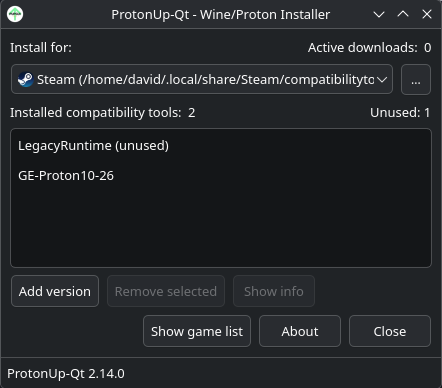
Clicking "Add version" will bring up the Install Compatability Tool dialog.
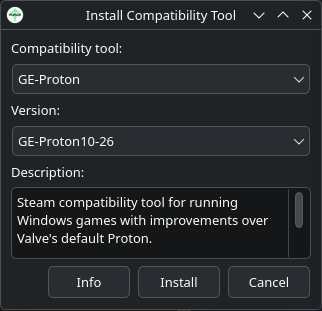
From the Compatability tool dropdown, we can select GE-Proton and then select a version (usually the most recent) to install to our system. This will then make that version of GE-Proton available to Steam but will require Steam to restart to see it.
Once Steam has restarted, you can go to Steam > Settings and select the Compatability tab.
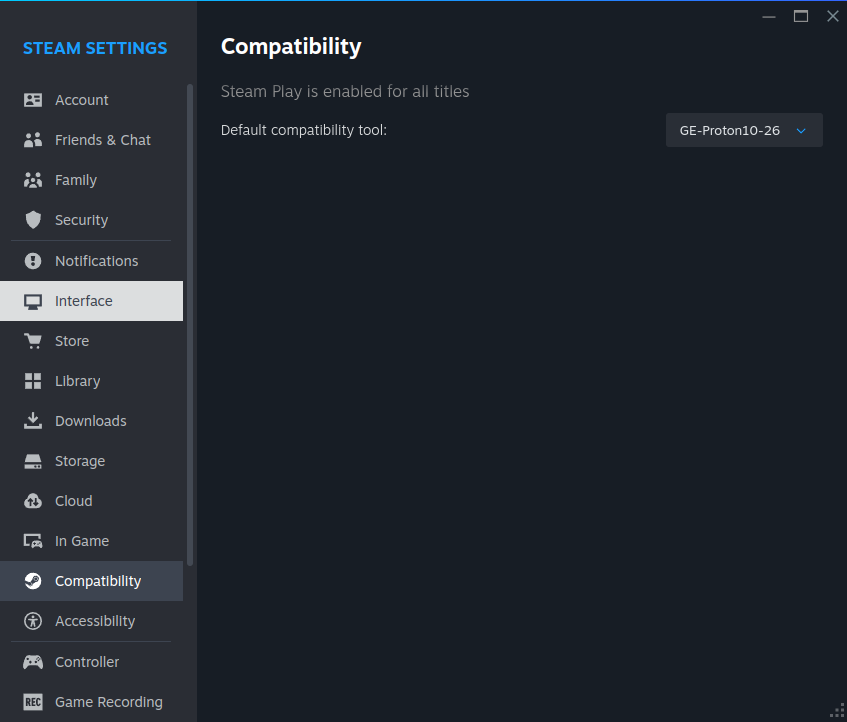
From the dropdown, we can easily set the version of Proton that games will default to. You can also override this setting per game by going to the game's properties, selecting the compatability tab, ticking the box to force use of a specific steam play compatability tool, and selecting whatever is desired.
Some games will work differently with different versions of Proton. However, unless I am having a particular problem with a game, I will generally use the system default.
Using Gamescope and FSR
Gamescope will run the game in a Xwayland session. Most desktop environments in Linux are moving away from X11 and to Wayland as it is more modern and offers newer features. X11 is a relic at this point and is way past retirement.
That being said, a lot of apps and games are designed to run in, or perform better using X11. Xwayland runs a special X11 environment in wayland for such programs.
We can easily just call gamescope in the games launch options, adding it to the previous options used:
Some games will run better using gamescope, some will not. Generally if you are not having an issue, I would leave it out.
FSR
Typically, if a game offers built in FSR or DLSS (in the case of Nvidia GPUs), it is best to use those settings.
However, if a game does not offer built-in FSR or DLSS, you can use FSR 1.x with gamescope:
Here, I've added a few gamescope options to our previous launch options.
-w 1600 -h 900 The lowercase letters indicate the native resolution the game is to be rendered at. In this case, the game will be originally rendered at 1600x900.
-W 2560 - H 1440 The uppercase letters indicate the output resolution that the game will be upscaled to. In this case, 1440p.
-F fsr This sets the upscaling filter to be used. In this case, FSR 1.x.
-f forces borderless fullscreen.
Putting It All Together
So, our final command:
- will launch the game
- inject mangohud and show the mangohud display
- render the game at 1600x900 and upscale to 1440p using FSR
- display fullscreen
You can use all of or parts of these commands as necessary, leaving out gamescope or mangohud as you deem fit.